GPS Map Camera App: Features, Stamp Options and Everyday Uses
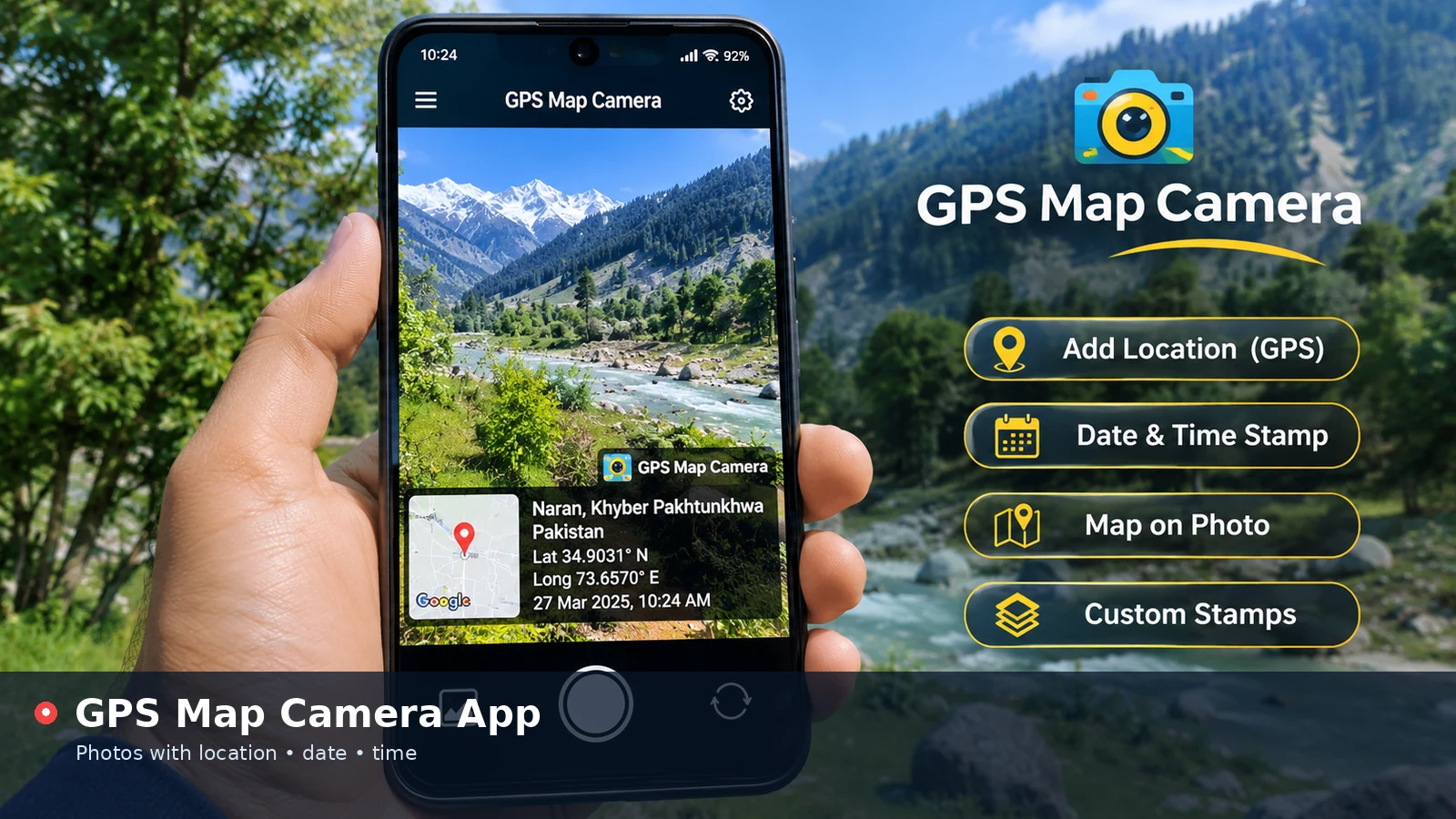
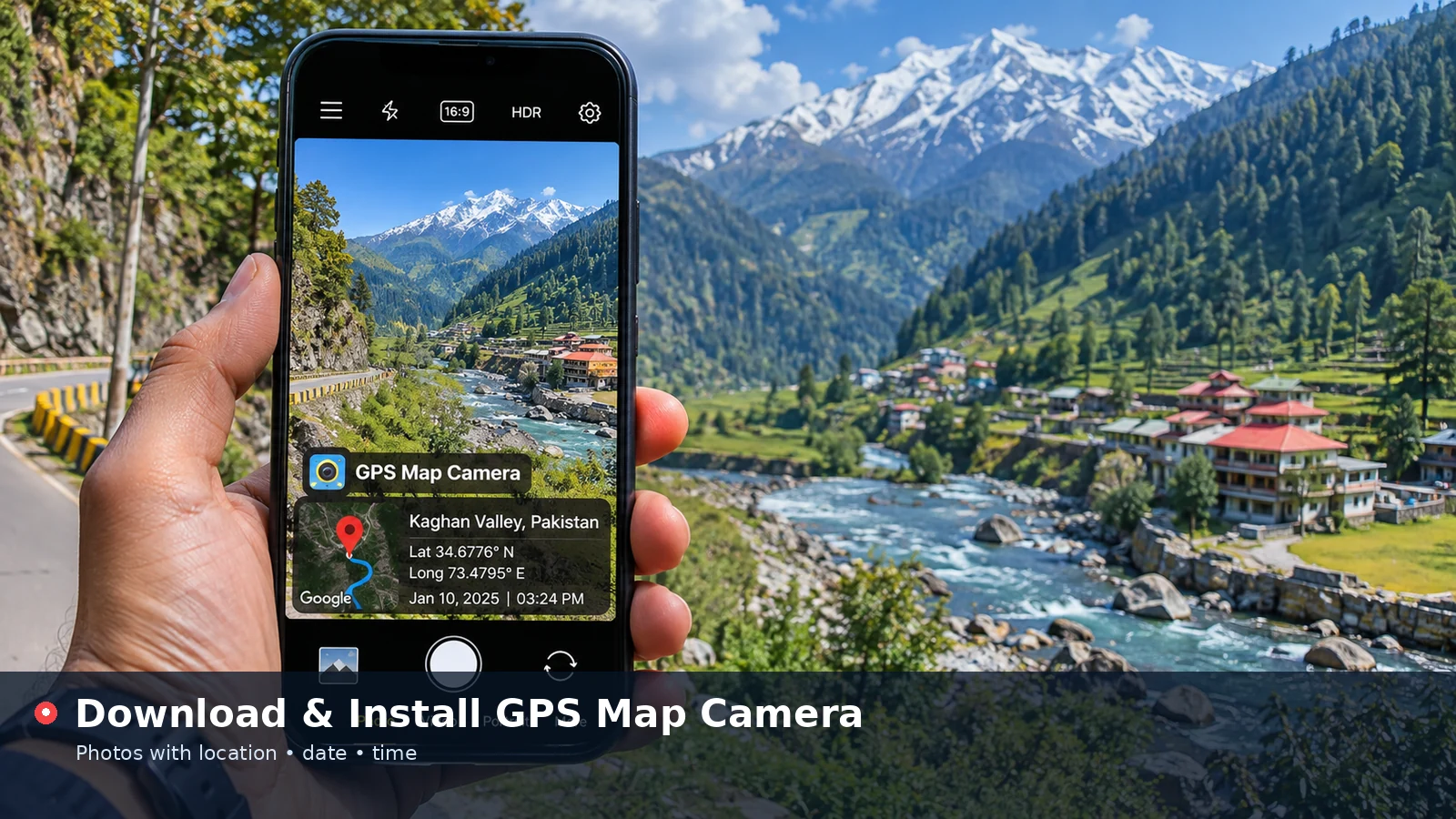
GPS Map Camera app is the name many people use for any camera tool that prints location details onto a photo. Whether it runs on a phone or inside a browser, the idea is the same: capture or open a picture, attach the place, coordinates and time, and keep those details visible on the image. This article explains the core features, the stamp options worth knowing and the situations where such an app earns its place on your device.
What a GPS Map Camera App Does
At its heart, the app combines two things that normally live apart. The photo shows what was in front of the lens, and the location data explains where that scene was. By printing both together, the picture becomes a self-contained record that does not depend on hidden metadata or a separate note.
Most tools in this category follow a similar flow. They read your device position or accept a manual entry, add the current date and time, and draw a tidy overlay that often includes a small map. The result can be saved, shared or attached to a report like any other image.
Core Features to Expect
A useful location camera covers the basics well before adding extras. The table below summarises the main stamp elements and why each one matters.
| Feature | What it shows | Why it helps |
|---|---|---|
| Location stamp | Place name and area | Instant context for any viewer |
| Coordinates | Latitude and longitude | Exact point for mapping or audits |
| Date and time | Moment of capture | Matches photos with events and reports |
| Map badge | Small map with a pin | Visual cue at a glance |
| Address line | Street or landmark | Readable detail for non-technical viewers |
| Custom design | Colours, size, logo | Keeps stamps neat and on brand |
Phone App or Browser Tool?
Phone apps are convenient when you take many photos on the move, because they stamp each shot at the moment of capture. They usually need installation, storage space and a set of permissions such as camera, location and file access.
The browser tool on this website takes a different approach. It works with photos you already have, needs no installation and processes everything on your own device. It suits people who stamp pictures occasionally, work on a shared computer or simply prefer not to add another app.
When the Browser Version Fits Best
The online tool is a strong choice when you need to stamp an existing image, prepare pictures on a laptop before sending them, or add a location to a photo taken with a separate camera.
- No installation or account
- Works on Android, iPhone, Windows, macOS and Linux browsers
- Reads EXIF date and GPS from compatible JPG files
- Saves as JPG or PNG with your chosen settings
Stamp Options Worth Setting Up
Good stamps are readable without dominating the picture. Position matters most: a corner placement keeps the subject clear, while a full-width bar suits documentation where the stamp should be impossible to miss.
Theme and text size come next. A dark glass background works on bright skies and pale walls, the light theme suits darker scenes, and the yellow theme stands out on busy, colourful images. Raising the text size helps when photos will be viewed on small phone screens.
Adding a Title, Note and Logo
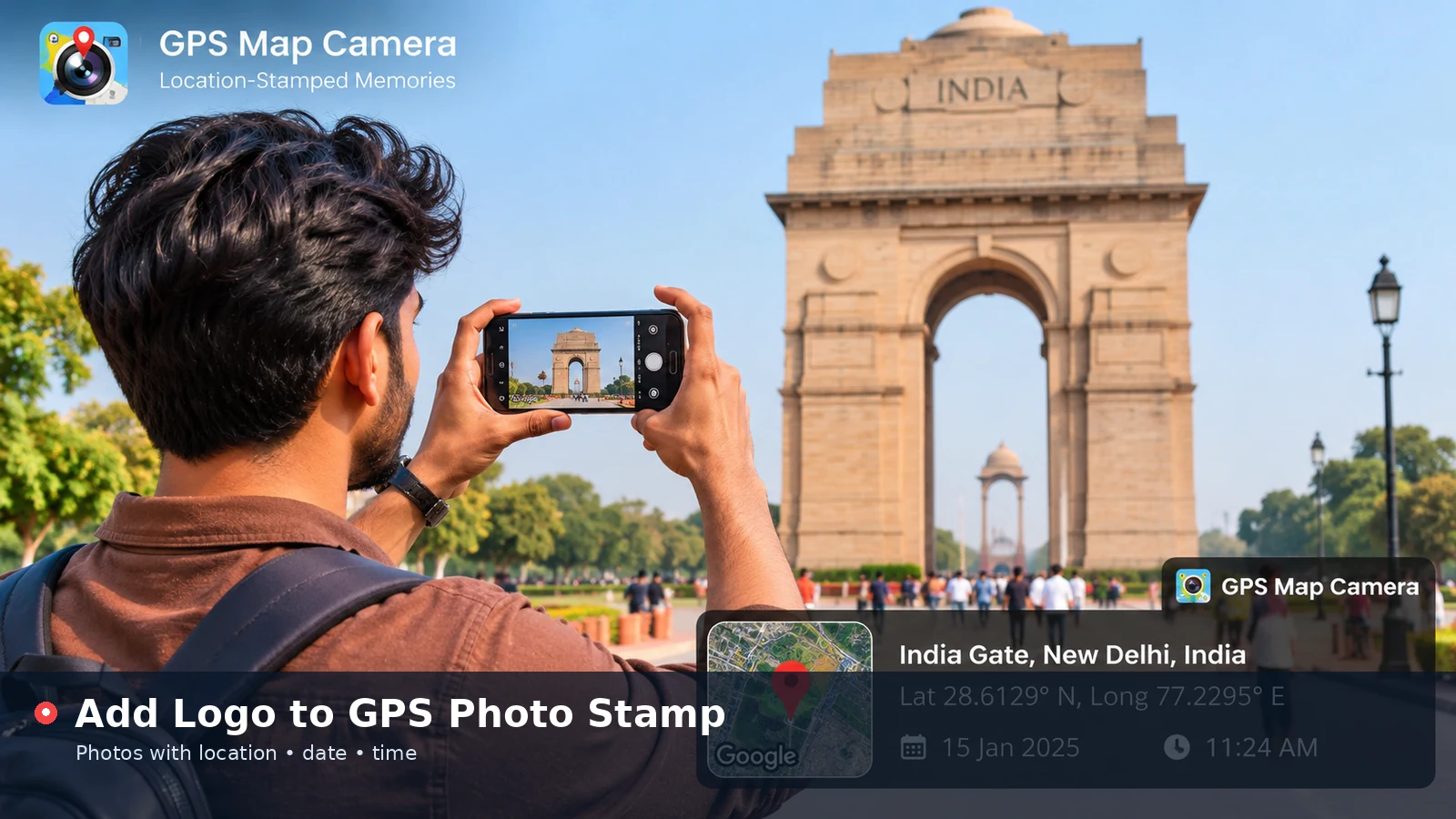
The title row can show your business or project name instead of the default text, and an optional note line is ideal for job numbers, room references or inspection IDs. Adding a logo makes stamped photos instantly recognisable inside a shared folder.
Everyday Uses for Location Photos
Location stamps solve a surprising number of daily problems. Travellers use them to remember which viewpoint or trail a photo came from, while property owners keep dated records of repairs and condition changes.
- Construction progress and site inspections
- Fieldwork, surveys and environmental sampling
- Delivery confirmation and service visits
- Rental move-in and move-out condition records
- Holiday albums and family memories
Privacy and Permission Basics
Any location tool deals with sensitive information, so it is worth understanding what is shared. Phone apps may request broad permissions, and some include advertising or analytics. Reviewing those permissions before installing is always sensible.
With the browser tool, location access is requested only when you press the location button, and photos never leave your device. You can also skip location access entirely and type coordinates by hand.
Choosing the Right Tool for Your Routine
The best location camera is the one that fits the way you already work. Someone who photographs dozens of sites every day benefits from automatic stamping at capture, while someone who prepares a weekly report on a laptop gains more from a tool that handles existing files.
Think about where your photos end up as well. Pictures shared in chat apps lose hidden metadata, so a visible stamp is valuable there. Images uploaded to professional systems may keep metadata, making a lighter stamp with just the date and place a cleaner option.
- Many new photos daily: favour automatic stamping
- Existing or older pictures: favour a browser tool
- Shared devices: favour options without installation
- Branded reports: choose a tool with logo support
Keeping Stamped Photos Organised
Stamps make photos self-explanatory, but folder structure still matters. Group images by project or trip, and use file names that include the date so they sort naturally on any device.
Back up important stamped photos together with the originals. If a detail ever needs correcting, the original file lets you create a fresh stamped copy without losing quality.
Frequently Asked Questions
Is the GPS Map Camera app free?
Pricing depends on the specific mobile app and its developer. The browser tool on this website is free to use without signing up.
Can a GPS Map Camera app work offline?
Phones can usually obtain GPS coordinates without internet, although map tiles may need a connection. The browser tool processes photos on your device once the page has loaded.
Does stamping change my original photo?
The browser tool always saves a new copy, so the original file stays unchanged on your device.
Can I edit the location after taking a photo?
Yes, in the browser tool you can type or adjust the place name and coordinates before saving the stamped copy.
Conclusion
GPS Map Camera app tools turn ordinary photos into clear records by printing location, coordinates and time directly onto the image. Choose a phone app when you stamp many shots on the go, or use the browser tool for quick, private stamping of pictures you already have. Either way, sensible stamp settings make every photo easier to understand.