GPS Map Camera Download and Install: Safe Setup Checklist
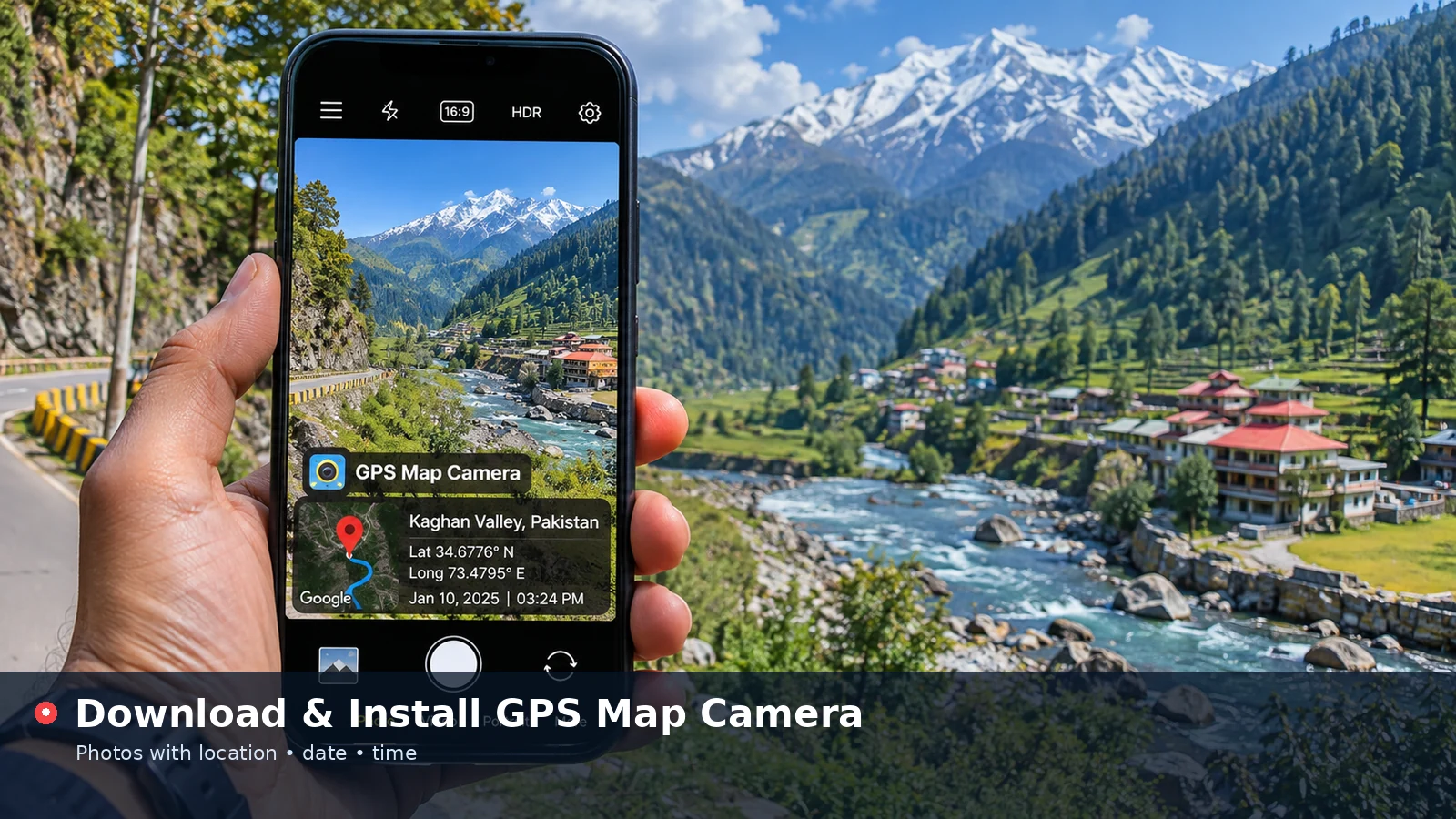
GPS Map Camera download searches usually come from people who want to stamp location details on photos as quickly as possible. Before installing anything, it helps to know where trustworthy versions come from, which permissions are reasonable and whether you need an app at all. This checklist walks through a safe setup and explains when the browser tool is the faster option.
Decide Whether You Need an App
An installed app makes sense if you take many location photos every day and want each shot stamped at the moment of capture. Field teams, delivery staff and inspectors often fall into this group.
If you only stamp photos now and then, or the pictures already exist, the online tool on this website does the job without any download. It runs in the browser, keeps photos on your device and works on phones and computers alike.
| Situation | Better option | Reason |
|---|---|---|
| Dozens of new photos daily | Mobile app | Stamps at capture time |
| Stamping existing pictures | Browser tool | No install, works with saved files |
| Shared or work computer | Browser tool | Nothing to install or remove |
| Limited phone storage | Browser tool | No app data stored |
Choose a Trustworthy Source
Official app stores remain the safest place to get a mobile app. Google Play on Android and the App Store on iPhone scan submissions, show the developer name and display reviews from real users.
Avoid random download pages that offer APK files with unclear origins. Repackaged files can include unwanted code, aggressive ads or tracking, and they do not receive automatic updates. If a website promises premium features for free, treat that as a warning sign.
Signs of a Reliable Listing
A few quick checks on the store page help you spot quality before installing.
- A clear developer name with a contact address or website
- A recent update history rather than years without changes
- Reviews that mention specific features, not only star ratings
- A privacy section explaining what data is collected
- Screenshots that match the description
Review Permissions Before Installing
A location camera app genuinely needs camera access and location access. Storage or photo library access is also reasonable, because the app saves stamped images to your gallery.
Requests for contacts, call logs, SMS or microphone access deserve a second look, since they are not required for stamping photos. On modern Android and iOS versions you can grant location only while the app is in use, which is usually the best balance.
Install and Set Up Step by Step
Once you are happy with the listing, installation is straightforward. Tap install, wait for the download to finish and open the app from your home screen.
- Allow camera access when asked
- Choose precise location while using the app
- Check that your phone clock is set to automatic time
- Select a stamp template and test it with one photo
- Confirm the saved image appears in your gallery
First Photo Test
Take a test picture outdoors and zoom into the stamp. Make sure the place name, coordinates and time look right, and that the stamp does not cover anything important. Adjust the template if text is too small to read on your screen.
Keeping the App Updated and Secure
Updates fix bugs, improve location accuracy and patch security problems, so enable automatic updates in your store settings. If the app stops receiving updates for a long time, consider switching to an actively maintained alternative.
Periodically review permissions in your phone settings and remove any you no longer need. Uninstalling unused camera apps also reduces background location requests and battery drain.
Using the Online Version Instead
When installation is not possible, the browser tool provides the same core result. Upload a photo, set the location and date, choose the style and save a stamped copy as JPG or PNG.
Skip the install and add a location stamp to your photo right now in the browser.
Add Location to PhotoBecause processing happens locally, the online version is handy on locked-down work devices and on phones with little free storage.
Storage, Battery and Performance
Location camera apps use the camera and GPS together, which can drain battery faster during long sessions. Closing the app when you finish and avoiding background location access helps keep power use under control.
Stamped photos are saved as new images, so storage fills up faster if both the original and the stamped version are kept. Review your gallery regularly and move finished project photos to cloud or computer storage.
- Disable background location for camera apps
- Clear duplicate originals once stamped copies are backed up
- Keep at least a little free space so the camera saves reliably
Removing an App You No Longer Need
If you switch tools, uninstall the old app rather than leaving it idle. Before removing it, export or back up any stamped photos stored inside the app's own folder, since some apps keep images outside the main gallery.
After uninstalling, check your phone's location and photo permissions list to confirm that access was removed. This keeps your device tidy and reduces the number of apps that can request sensitive data.
Frequently Asked Questions
Is it safe to download GPS Map Camera from third-party websites?
Unofficial download pages carry more risk because files can be modified. Official app stores are the safer choice for mobile apps.
Do I need to install anything to use the online tool?
No. The tool on this website runs in your browser and needs no download or account.
Why does the app ask for location access?
Location access lets the app read coordinates for the stamp. Choosing "while using the app" limits access to times when the camera is open.
Can I install a location camera on a computer?
Many location camera tools are built for phones, but the browser tool works on Windows, macOS and Linux computers without installation.
Conclusion
GPS Map Camera download decisions are easier when you match the tool to your routine. Use an official app store for frequent on-the-spot stamping, check permissions and keep the app updated. For occasional or existing photos, the browser version delivers clear location stamps with no install at all.